What is the Beautify theme quiz?
The Beautify theme offers a quick and easy-to-set-up quiz section using product tags and specialized blocks. The quiz helps customers to find the right products for them. It guides shoppers to make informed purchasing decisions, keeps them engaged on your site longer to boost SEO, and reinforces branding while highlighting product features.
Why add a quiz to your store?
When searching for a product, particularly cosmetics or personal products, there's a certain risk in trying something new. In addition to social proof and reviews, customers like to know if the product will be suitable for them. The quiz section in the Beautify theme makes it possible to answer these questions: Which product is right for me? Which colors will suit my skin tone? What are the latest trends?
Help buyers to find the products they need by guiding them through the decision making process, while keeping users on your website for longer to enhance SEO page rankings. The Beautify theme quiz is a great way to connect with customers and explain product features. The quiz can be used to create memorable customer experiences and make shoppers feel valued.
Video guide available
How do I set up the quiz section?
The Beautify quiz makes use of Shopify's built-in product tag filtering functionality. By linking tags to answers, the theme can filter a collection of products. At the end of the quiz, the customer will be shown all the products in the chosen collection with the tags matching their answers.
The quiz has 5 building blocks:
- The Landing block - Introduces the quiz
- A Personalize block - Allows the customer to enter their name for a personalized results page.
- Question blocks* - Contain a question with up to eight answers. At least one question block is required for the quiz to work.
- Submit block - For messaging and branding and to indicate the questions have finished. This holding page builds anticipation for the results.
- Results block* - Shows the list of products that are the quiz results.
(* Required)
Tip
How do I set up the tags?
Steps
- In the Shopify admin area, open the product editor by clicking on Products.
- Use the editor or bulk editor to add tags to your products. Read more about Shopify tags.
Tip
How do I set up the quiz logic and color scheme?
Steps
- Open the Theme Editor and add a Quiz section.
- In the main Quiz settings, select the Collection from which the results will be drawn.
- Set the preferred Logic to be AND or OR.
- AND : Returns products that contain all the tags in all the customer's chosen answers.
- OR : Returns products that contain any of the tags in any of the customer's chosen answers. - Choose Show cutout cards if the product cards in the results should use the cutout style where the product image overlaps the top of the card. Refer to the Product cards guide for more information about the cutout card style.
- In the Style settings, select a Color scheme.
- Select the text, background and border colors for answers, hovered answers and selected answers. Increase the Answer border width if desired.
Caution
How do I set up the quiz landing block ?
The landing block is the first page of the Beautify quiz. Add an eye-catching image and some engaging text.
Steps
- Open the Theme Editor and add or edit a Quiz section.
- Open the Landing block. This should be positioned as the first block, although it is not mandatory and the quiz will still work without this block.
- Add a Heading, Subheading or Text to encourage customers to try the quiz.
- Add Button text. Clicking the button will take the user to the next stage of the quiz.
- Add an Image if desired. The image will appear on the left on large screens and above the text on smaller screens. A square image is recommended for best results. An additional setting provides the ability to choose a different Image aspect ratio for smaller screens.
How do I set up the quiz personalize block?
The quiz personalization block is optional. It allows you to capture the customer name which can then be displayed over an image (widget) and also used at the end of the quiz in the results.
Tip
- Open the Theme Editor and add or edit the Quiz section.
- In the Personalize block, a Subheading, Heading and explanatory Text can be added.
- Choose the Input placeholder text for the customer name entry field.
- Configure the Button text which will take the customer to the questions which are the next stage of the quiz.
- Select Enable widget to display the customer input, usually the name, on the personalize screen. Add an Image and set the Maximum image width and Image aspect ratio.
How do I set up the question block?
Each quiz can have up to ten questions, each with up to eight answers. The question blocks have three main components.
- Question - asks the customer a question
- Modal - an optional modal popup for explanatory information about the question
- Answers - up to eight answers with text and/or images.
Before configuring the question block, consider which tags you will use to filter the products in your chosen collection and whether multiple answers can be selected.
Steps
- Open the Theme Editor and add or edit the Quiz section.
- In the Question settings, add a Heading which will be the question and configure the Button text to suit your brand. If no text is entered, the button text will default to "Next".
- Choose Multiple choice to allow users to select more than one answer.
- If additional explanation is required add Text or select Enable Modal. The Modal provides a popup which can be used to clarify the details about the question to assist the customer.
- Add up to eight Answers in the block. Each answer can include Text, a Caption and/or an Image. Image shape and Image fit settings can be set to ensure a consistent layout.
- Most importantly, for each Answer, enter the product Tags that will be used to filter the Collection selected in the main Quiz settings. Ensure that the tags exist in your products.
- Add extra Question blocks with answers as needed.
Tip
If you aren't seeing the results you expect, check that the collection selected in the main Quiz section settings includes the products you wish to show.
Secondly, check that the tags listed in the answers have been added to the product. For multiple choice questions in a quiz using AND logic, the product needs to contains all the tags listed for all the selected answers.
How do I set up the quiz submit block?
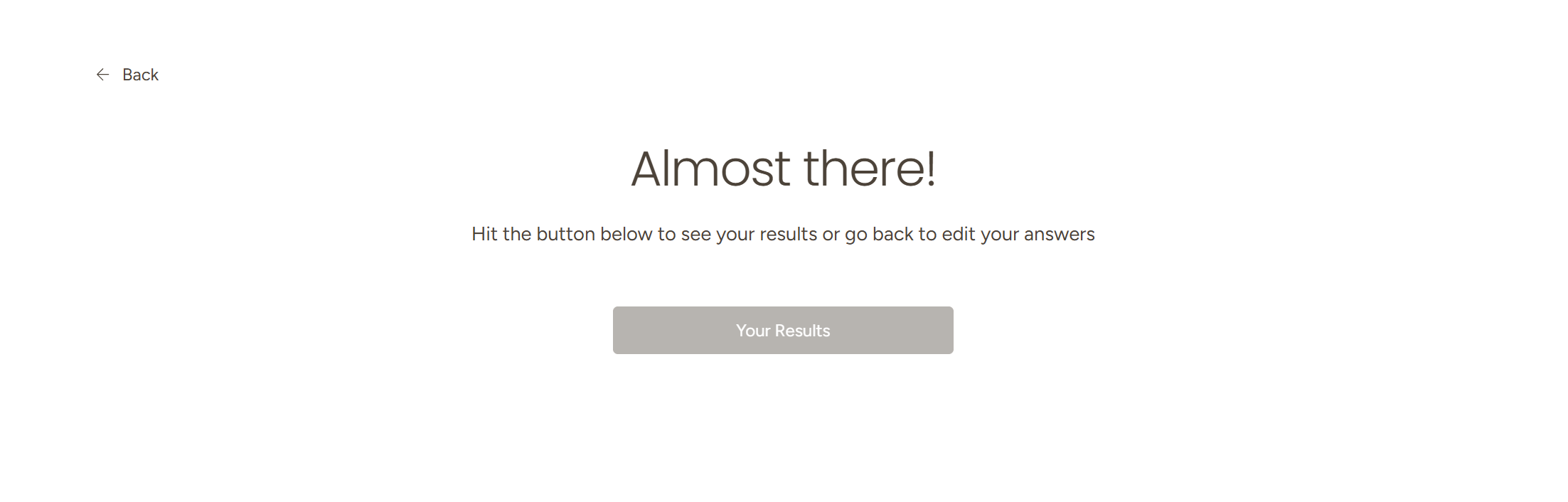
The quiz submit block is optional, but provides a great opportunity to build anticipation and communicate additional marketing messages. It is a holding screen that the customer will read while they wait for their results.
Tip
- Open the Theme Editor and add or edit edit the Quiz section.
- In the Submit block, add a Heading and Text to build anticipation.
- Configure the Button text which will take the customer to the results of the quiz.
- Add an Image with a Maximum image width and Image aspect ratio. The image corner rounding is taken from the Content radius in the Design theme settings.
 How do I set up the quiz results block?
The quiz results block is necessary for the quiz to function. It's the final block in the quiz where customers can find out which products are recommended for them.
- Open the Theme Editor and add or edit edit the Quiz section.
- In the Results block review the Heading text. Add the word name in square brackets to pull in the name input entered in the Personalize block. e.g. 'Based on your results [name], we suggest:'
- Additional explanatory Text can be added which will appear under the heading.
- Configure the Button text which will take the customer away from the results page and back to the start of the quiz.
- In the Secondary content settings, an additional Heading and Text can be displayed below the quiz results.
- In the No results settings, add Text to be displayed if no results are found.
Tip
How to video guide
FAQs
Can I email customers the results?
No, the Beautify quiz section does not include integration with an email system. A newsletter section can be added beneath the quiz to capture email sign ups.
What is the maximum number of results returned?
The maximum number of results shown on the results page is set to the Products per page setting from the collection used in the quiz.
Can't find what you're looking for?
Our support staff are here to answer your queries, so don't hesitate to write to us!
Contact us